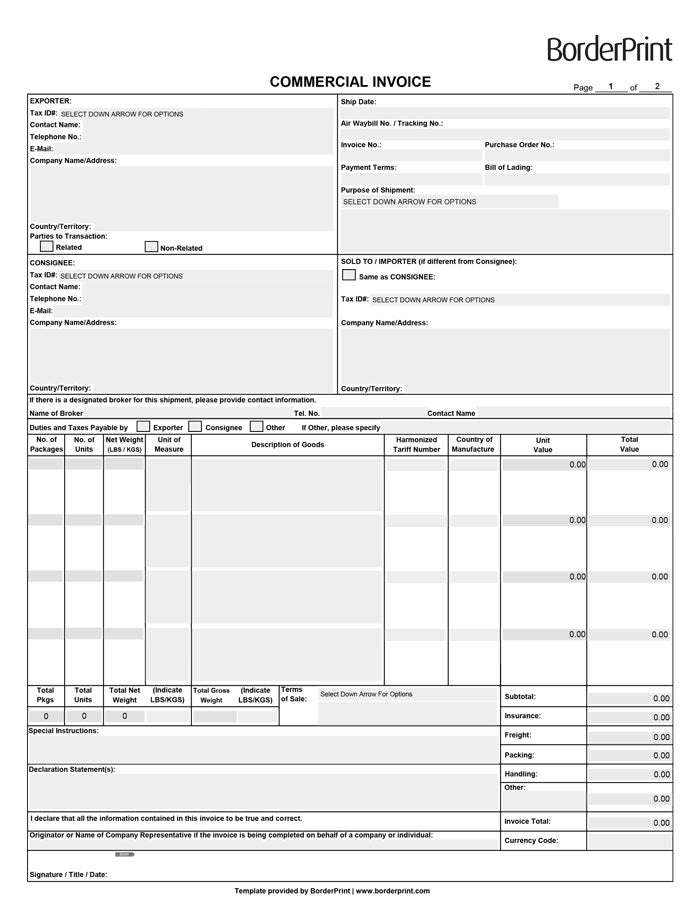


Prepare your shipment details with BorderPrint’s fillable commercial invoice template. This two-page PDF includes space for 14 line items, automatic calculations, and a digital signature field to help you complete and organize your invoice.
Features
- Digitally fillable fields: Enter exporter, consignee, importer, broker, and shipment information.
- Automatic line-item values: Calculates the number of units multiplied by the unit value.
- Automatic shipment totals: Adds package counts, quantities, and net weights across both pages.
- Automatic invoice total: Combines goods values with insurance, freight, packing, handling, and other charges.
- Continuation sheet: Includes additional space for shipments with more than four line items.
- Digital signature field: Sign the completed invoice using a certificate-based digital ID.
Important: Download Before Completing
Download the PDF and open it in the desktop Adobe Acrobat Reader app. Built-in browser PDF viewers may not support the digital signature field or all automatic calculation features (PDF compatibility guidance).
Digital signing requires a digital ID rather than simply typing your name. You can select an existing digital ID or follow Acrobat’s prompts to configure one (Adobe signing instructions).
How to Complete Your Invoice
- Download and open: Save the PDF to your computer and open it in desktop Adobe Acrobat Reader.
- Enter shipment details: Complete the exporter, consignee, importer, invoice, and shipment fields.
- Add your goods: Enter each item’s description, package count, quantity, unit of measure, tariff number, country of manufacture, and unit value.
- Enter net weights: Use the total net weight for each row, not the weight of a single unit. Use either pounds or kilograms consistently throughout.
- Enter additional charges: Add insurance, freight, packing, handling, and other charges where applicable.
- Enter gross weight: Manually enter the shipment’s actual total weight, including packaging.
- Review and sign: Check all information and calculated totals, then apply your digital signature and save the completed invoice.
Before Submitting
Use one currency throughout the invoice and enter its currency code. Avoid counting the same package more than once when it contains goods listed on different rows.
Confirm your shipment’s documentation and signing requirements with your customs broker or carrier before use. This template does not guarantee customs acceptance or replace other shipment-specific documents.